Complete Guide to Showing Formulas in Excel | Turbo Trace Add-In for Advanced Formula Auditing
Microsoft Excel is one of the most powerful tools for data analysis, financial modeling, and business reporting. However, as spreadsheets grow larger and formulas become increasingly complex, troubleshooting them can quickly become overwhelming. This is where formula auditing proves invaluable. While Excel offers a built-in Show Formulas feature, it often falls short for advanced users who work with nested formulas, cross-sheet dependencies, or large-scale data models. In such cases, a more advanced solution is required like the Turbo Trace add-in, which makes formula auditing faster and more efficient.
In this guide, we’ll cover how to use Excel’s Show Formulas feature, its limitations, and why Turbo Trace is a powerful tool for advanced formula auditing. Read more to discover step-by-step instructions and FAQs that will help you audit and debug Excel formulas more efficiently.
The Show Formulas feature in Excel allows you to view the underlying formulas in your spreadsheet instead of their results. It’s a great starting point for troubleshooting, especially when numbers don’t add up as expected.
How to Use Show Formulas in Excel
Open your spreadsheet in Excel.
Navigate to the Formulas Tab on the ribbon.
Click the Show Formulas button.
Instantly, every cell displays its formula instead of the calculated value.
You can toggle back to normal view anytime by clicking the button again.
Limitations of Excel’s Standard Show Formulas Tool
While useful, Excel’s built-in feature has several drawbacks that can slow down your auditing process:
No Visual Breakdown: Shows formulas in raw text, without explaining each component.
Limited to Basic Dependencies: Trace Dependents and Trace Precedents only reveal direct cell connections.
Poor Cross-Sheet Analysis: Tracing formulas across multiple sheets or workbooks is difficult.
Manual Debugging Required: Identifying errors in complex formulas like nested IFs or VLOOKUPs takes a lot of time.
Not Ideal for Professionals: Advanced users managing financial models, dashboards, or databases need a more powerful solution.
This is exactly where Turbo Trace takes over.
What is Turbo Trace?
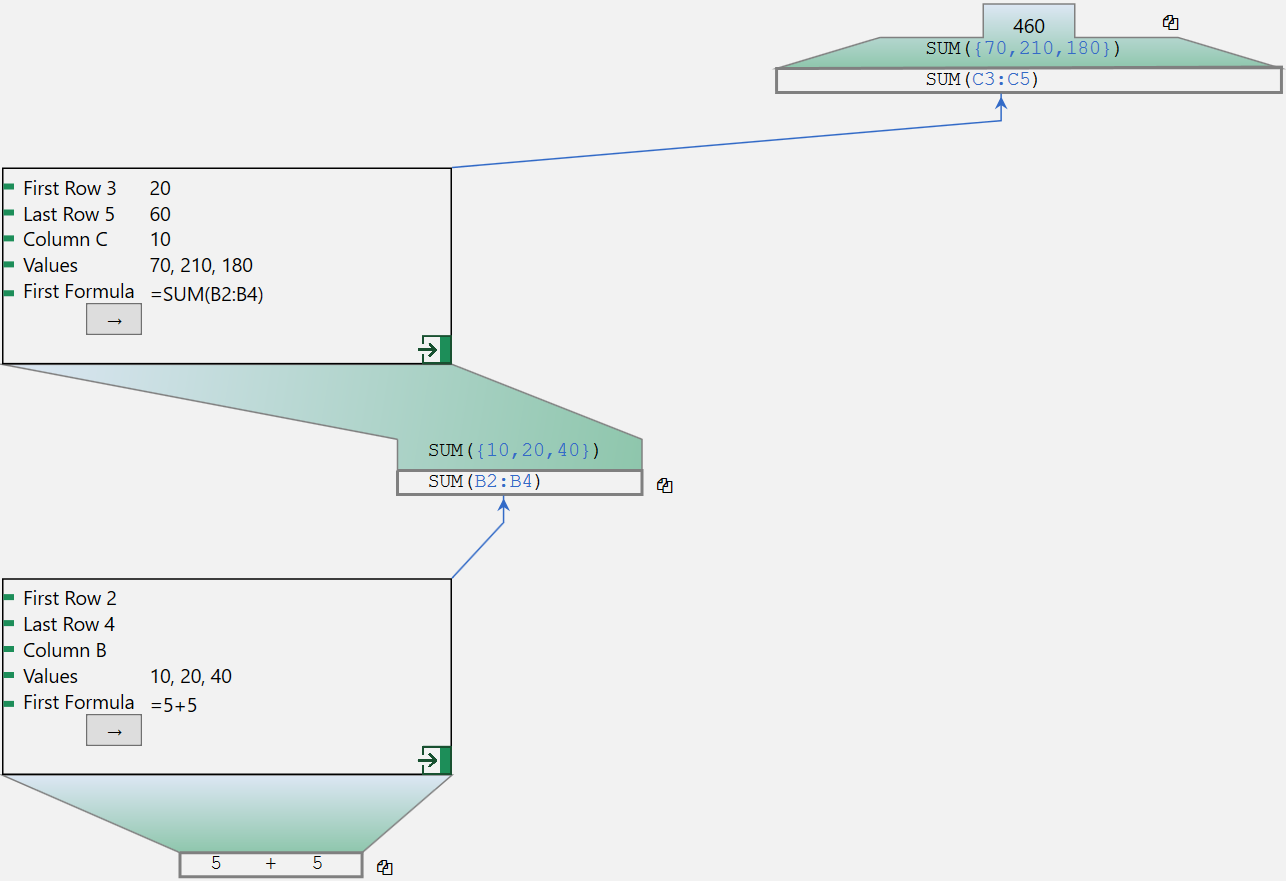
Turbo Trace is a free Excel add-in designed to expand and enhance the built-in Show Formulas feature. Instead of manually untangling formulas, Turbo Trace provides a visual, step-by-step breakdown of every calculation.
Key Features of Turbo Trace
Layered Formula Breakdown: See formulas split into easy-to-understand components.
Advanced Error Tracking: Instantly highlight formula errors and inefficiencies.
Cross-Sheet Analysis: Seamlessly trace formulas across multiple sheets and tabs.
User-Friendly Interface: A clean, intuitive design that saves time and effort.
Best of all Turbo Trace is completely free to download and use.
Turbo Trace vs. Excel’s Show Formulas (Comparison Table)
Feature
Excel Show Formulas
Turbo Trace Add-In
Visual Breakdown
No
Yes
Support for Nested Formulas
Limited
Full Support
Error Tracking
Manual
Automated
Cross-Sheet Analysis
Limited
Seamless
Ease of Use
Moderate
High
Formula Auditing
Basic
Advanced
Clearly, Turbo Trace wins when it comes to auditing large and complex datasets.
How to Use Turbo Trace for Formula Auditing in Excel
Step 1: Install Turbo Trace
Download Turbo Trace from the official Turbo Tools website. Follow the simple installation steps (Windows compatible).
Step 2: Open Turbo Trace in Excel
Once installed, you’ll see Turbo Trace in the Excel ribbon. Click the Turbo Trace option to activate it.
Step 3: Select a Formula to Audit
Highlight the cell with the formula you want to analyze. Turbo Trace instantly begins breaking it down.
Step 4: Review the Layered Breakdown
Turbo Trace will visually display each part of the formula. You can dive deeper into nested components (e.g., IF statements, INDEX/MATCH, VLOOKUP).
Step 5: Identify Errors or Inefficiencies
Turbo Trace highlights potential issues in your formulas. Fix them directly without wasting time manually tracing each step.
Step 6: Audit Multiple Formulas Across Sheets
Unlike Excel, Turbo Trace works seamlessly across multiple tabs and sheets. Ideal for financial models, data analysis reports, and enterprise-level spreadsheets.
Benefits of Using Turbo Trace Over Standard Excel Tools
Saves Time: No more manual cross-checking formulas.
Boosts Productivity: Handle large datasets without confusion.
Professional-Grade Auditing: Essential for accountants, analysts, and data professionals.
Free to Use: Unlike many premium add-ins, Turbo Trace is available at no cost.
Frequently Asked Questions (FAQ)
Q1: Is Turbo Trace free? Yes! Turbo Trace is 100% free no trials, subscriptions, or hidden fees.
Q2: Does Turbo Trace work on Mac? Currently, Turbo Trace is designed for Windows. Check the official website for Mac updates.
Q3: Can Turbo Trace audit formulas across multiple sheets? Absolutely. Unlike Excel’s built-in tools, Turbo Trace makes cross-sheet analysis simple.
Q4: Do I need advanced Excel skills to use Turbo Trace? Not at all. Turbo Trace is designed with a user-friendly interface, making it accessible to beginners and professionals alike.
Q5: Can I use Turbo Trace with other Turbo Tools? Yes, it integrates seamlessly with other Turbo Tools for even more powerful Excel management.
Conclusion
Excel’s built-in Show Formulas feature is helpful but limited especially when working with complex spreadsheets. The Turbo Trace add-in provides a smarter, faster, and more visual way to audit, debug, and master your formulas.
If you’re tired of spending hours manually tracing formulas, Turbo Trace is the solution you need.
Download Turbo Trace for Free today and take your Excel skills to the next level.

 Visit For Complete Guide to Showing Formulas in Excel